
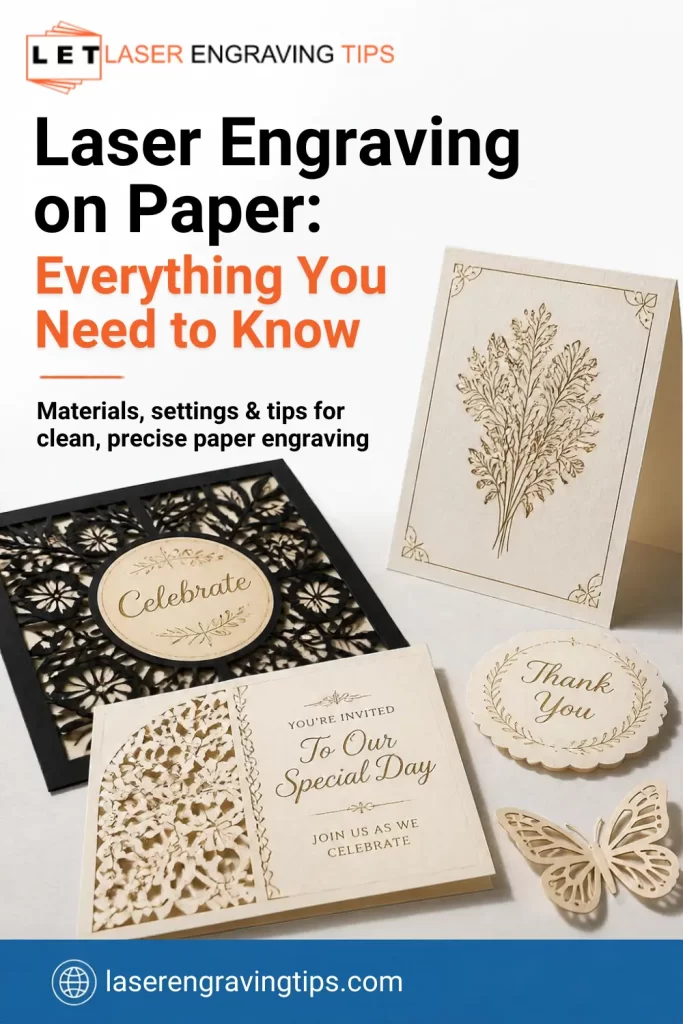
Laser engraving on paper is a creative way to produce detailed designs, custom artwork, intricate patterns, and personalized products.
From wedding invitations and greeting cards to business stationery, paper art, packaging, and decorative cutouts, laser technology makes it possible to achieve precise results that are difficult to reproduce by hand.
Unlike traditional engraving methods, laser engraving uses a focused beam of light to modify, darken, or remove small areas of the paper surface.
Depending on the laser type, paper thickness, and processing settings, you can create delicate lines, shaded illustrations, intricate cutouts, and detailed lettering.
However, paper is a thin, combustible material that can burn easily. Choosing the right laser and using suitable settings are essential for achieving clean results without scorching, unwanted discoloration, or excessive material removal.
Table of Contents
In this guide, we’ll explain how laser engraving on paper works, which lasers are best, what types of paper you can use, how to choose suitable settings, and how to get the best results from your projects.
Can You Laser Engrave Paper?
Yes, you can laser engrave paper using compatible laser engraving machines. Paper absorbs laser energy and can be darkened, ablated, or cut, depending on the laser’s characteristics and the processing parameters.
Laser engraving can be used to create:
- Detailed illustrations and line art
- Personalized messages and names
- Wedding invitations and greeting cards
- Business cards and branded stationery
- Decorative patterns and paper artwork
- Stencils and templates
- Paper packaging and product labels
- Intricate designs for scrapbooking and crafts
The key is controlling the amount of energy delivered to the paper. Too much energy can cause deep charring, burn marks, or unwanted holes. Too little energy may produce a faint or inconsistent design.
With the right setup, laser engraving can produce clean, repeatable results while preserving the delicate details of the original artwork.
What Is Laser Engraving on Paper?
Laser engraving on paper involves directing a focused laser beam onto selected areas of the sheet. The energy changes the paper’s surface, often through localized heating, discoloration, or removal of material.
The result depends on the paper’s composition and the laser’s wavelength, power, pulse characteristics, and scanning speed.
Paper is made primarily from cellulose fibers, although many commercial papers also contain coatings, fillers, dyes, optical brighteners, or other additives. These ingredients influence how the material reacts to laser energy.
For example, an uncoated sheet may develop a brown or dark mark when heated. A coated paper may react differently, and some finishes may discolor unevenly or release unwanted fumes.
Laser engraving and laser cutting are related but distinct processes.
Process | What it does | Common applications |
|---|---|---|
Laser engraving | Darkens or removes selected surface areas | Artwork, text, illustrations |
Laser marking | Changes the appearance of the paper surface | Logos, labels, decorative details |
Laser cutting | Cuts through the sheet | Shapes, stencils, invitations |
Laser scoring | Creates a controlled line or partial cut | Fold lines and paper crafts |
The exact terminology varies between machines and software. In practice, many paper projects combine engraving and cutting in the same design.
Which Laser Is Best for Engraving Paper?
Several laser types can process paper, but they differ in how much control they offer, the detail they can reproduce, and how efficiently they work.
1. Diode Laser
Diode lasers are popular among hobbyists and small businesses because they are relatively accessible and can handle a range of craft materials.
A blue diode laser can engrave and cut many types of paper, depending on the machine’s power, focus, motion system, and the paper itself. Lower-energy processing is often sufficient for fine surface details.
Diode lasers can be useful for:
- Personalized cards
- Paper artwork
- Decorative patterns
- Thin paper cutouts
- Stencils and craft templates
- Small-batch stationery
One advantage of a diode laser is its versatility. A single machine may also be used for compatible wood, leather, and other materials.
However, paper requires careful control because excessive energy can cause scorching or ignition. A powerful diode laser is not automatically better for fine paper engraving.
The Diode Laser We Recommend for Laser Engraving on Paper: xTool M2 10W Laser Engraver
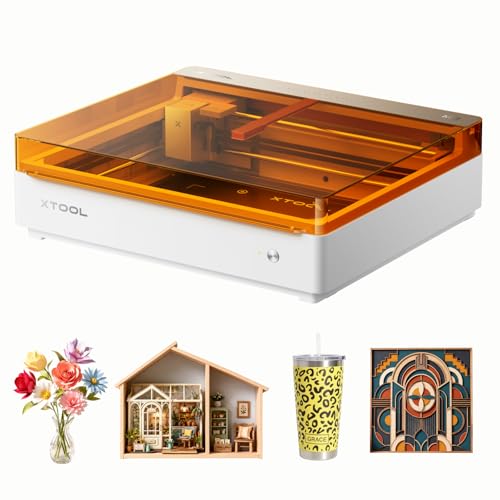
- NOTE: CMYK Inkjet module and RA3 Lite Rotary are not included in this M2 standalone, available separately as add-ons.
2. CO2 Laser
CO2 lasers are widely used for processing nonmetallic materials, including paper, cardboard, wood, and acrylic. They are a strong option for paper projects that require a larger working area, repeatable cutting, or efficient production.
CO2 lasers are available in a range of power levels, making it possible to choose a system suited to delicate crafts or higher-volume work.
Common applications include:
- Wedding invitations
- Intricate paper cutouts
- Packaging inserts
- Decorative cardstock
- Custom stationery
- Commercial paper crafts
A CO2 laser can deliver excellent results, but the correct power, speed, focus, and airflow are important. High power combined with slow movement can quickly scorch or ignite thin paper.
A CO₂ laser engraver like the xTool P2S is ideal for paper. It works efficiently with organic materials like paper, wood, and leather.
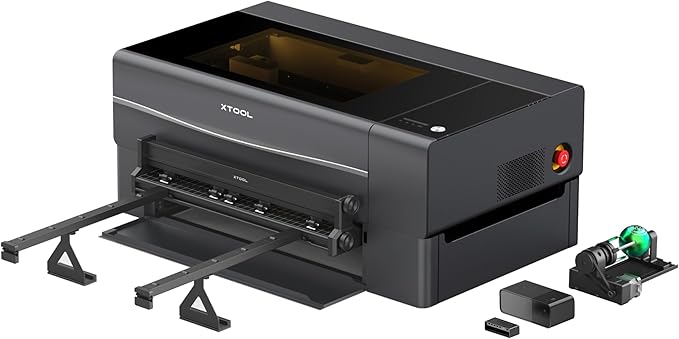
For most users, a diode laser is a practical starting point for small paper crafts, while a CO2 laser is often better suited to frequent cutting and larger-scale production.
What Types of Paper Can You Laser Engrave?
Different papers react differently to laser energy. Thickness, fiber composition, color, coating, moisture, and manufacturing additives can all influence the result.
Always test the exact paper you plan to use before starting a finished project.
1. Cardstock
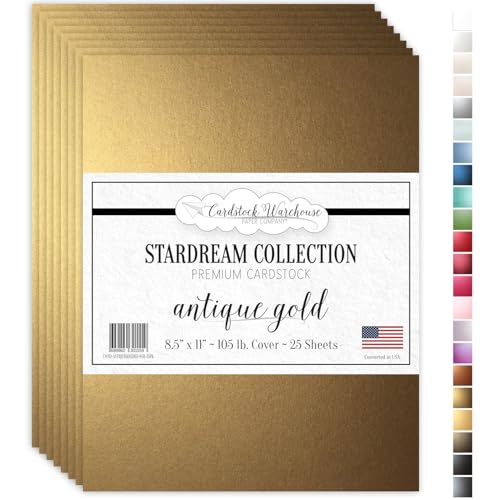
- 𝗜𝗻𝘁𝗿𝗼𝗱𝘂𝗰𝗶𝗻𝗴 𝗦𝘁𝗮𝗿𝗱𝗿𝗲𝗮𝗺 𝗔𝗻𝘁𝗶𝗾𝘂𝗲 𝗚𝗼𝗹𝗱 𝗖𝗮𝗿𝗱 S𝘁𝗼𝗰𝗸 𝗣𝗮𝗽𝗲𝗿: Take your printing, crafting, and DIY card-making projects to the next level with Stardream Antique Gold pearlescent paper. Perfectly sized at 8.5 x 11" this high-end dark burnished gold shimmer cardstock ensures your creations make a lasting impression. Stardream cardstock papers are available in a stunning range of beautiful hues.
Cardstock is a popular choice for laser engraving because it is thicker and more rigid than ordinary printing paper.
It is commonly used for greeting cards, wedding invitations, business cards, decorative labels, and paper art.
Depending on its composition, cardstock can produce crisp engraved lines and clean cutouts. However, dark or heavily coated cardstock may show less contrast, and some finishes may scorch unevenly.
Choose a stock that is compatible with laser processing and test both engraving and cutting separately.
2. Kraft Paper
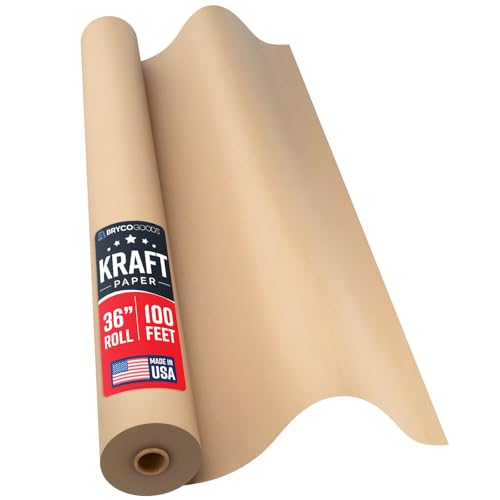
- Superior Wrapping Paper for Large Presents; Use for wrapping Christmas, birthday or wedding gifts
Kraft paper has a natural brown appearance and is often used for packaging, tags, labels, and rustic-style stationery.
Its color can make dark engraved details easy to see. Laser processing can also create attractive contrast between untreated and darkened areas.
Kraft paper varies in thickness and fiber composition, so test the material before selecting production settings.
3. White Paper
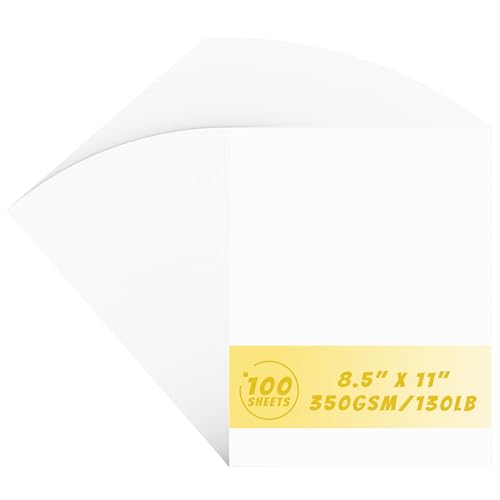
- 350gsm Thick Paper: Made from premium 350gsm/130lb white paper, this cardstock is thick and sturdy, resists ink bleed-through, and offers excellent durability with a flexible finish.
White paper is useful for fine illustrations, patterns, templates, and delicate decorative work.
Because white paper can discolor quickly, excessive laser energy may create yellow or brown marks instead of clean details. Some papers also contain optical brighteners or coatings that influence their reaction.
For a light sheet, start conservatively and use test patterns to determine how much energy is needed for a visible mark.
4. Colored Paper

- BULK CONSTRUCTION PAPER: The 480-count of Crayola Construction Paper features 48 pages (10 unique colors) per pack.

Colored paper can produce distinctive results for greeting cards, invitations, and artistic designs.
The outcome depends on the dyes, pigments, and coatings used in the paper. Some colors darken noticeably, while others may fade, change shade, or become uneven.
Test a small sample of each color rather than assuming that the same settings will work across an entire paper range.
5. Recycled Paper
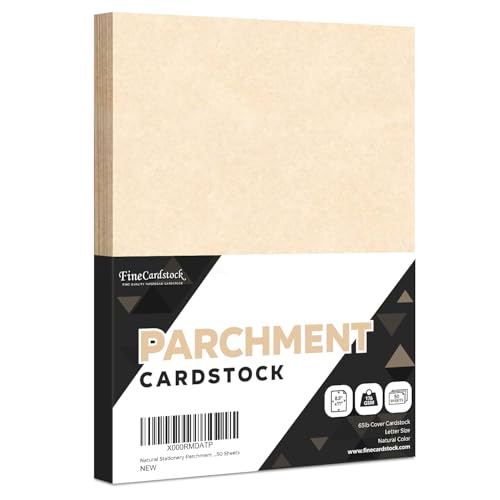
- Stationery Imitation Parchment Recycled Paper | 8.5 x 11 Inches
Recycled paper can be suitable for laser engraving, but its composition may be less consistent than that of some specialty papers.
Variations in fibers, fillers, and coatings can affect contrast and cutting quality. If you are producing a batch of identical products, test material from the same supplier and, where possible, the same batch.
6. Handmade Paper

- THICK 150 GSM HANDMADE ACID FREE PAPER : Add a vintage touch to your creation with thick , textured and durable paper.
Handmade paper often has an irregular texture and visible fibers that create an appealing artistic finish.
It can be used for invitations, decorative artwork, keepsakes, and specialty stationery. However, variations in thickness and fiber density may lead to inconsistent engraving.
Secure the sheet carefully and check the focus across the working area.
7. Coated and Glossy Paper
- BE CREATIVE: Premium paper for business or artistic needs. Use it to make custom paper decorations, homemade thank-you notes, and also great for folding or cutting down to custom sizes for brochures, menus and direct mail. The creative options are endless!
Coated paper may be more challenging because its surface finish can react differently from the paper underneath.
Some coatings may melt, discolor, or produce unwanted fumes when exposed to laser energy. Glossy paper may also produce uneven results depending on the finish and laser type.
Do not process an unknown coated paper until you have confirmed its composition and suitability for laser use.
8. Corrugated Cardboard

- 【STURDY AND SAFE】 RLAVBL cardboard sheets are made of high-quality three-layer E-flute corrugated board. It is extremely strong and sturdy and ensures the safety of the items you are shipping or mailing.
Corrugated cardboard can be laser cut and, under suitable conditions, engraved for packaging prototypes, models, displays, and craft projects.
Its layered structure makes cutting results less predictable than with a flat sheet. The exposed corrugated interior can also burn more readily than the outer liner.
Use careful testing and continuous supervision, particularly when cutting through multiple layers.
How to Laser Engrave Paper: Step-by-Step Guide
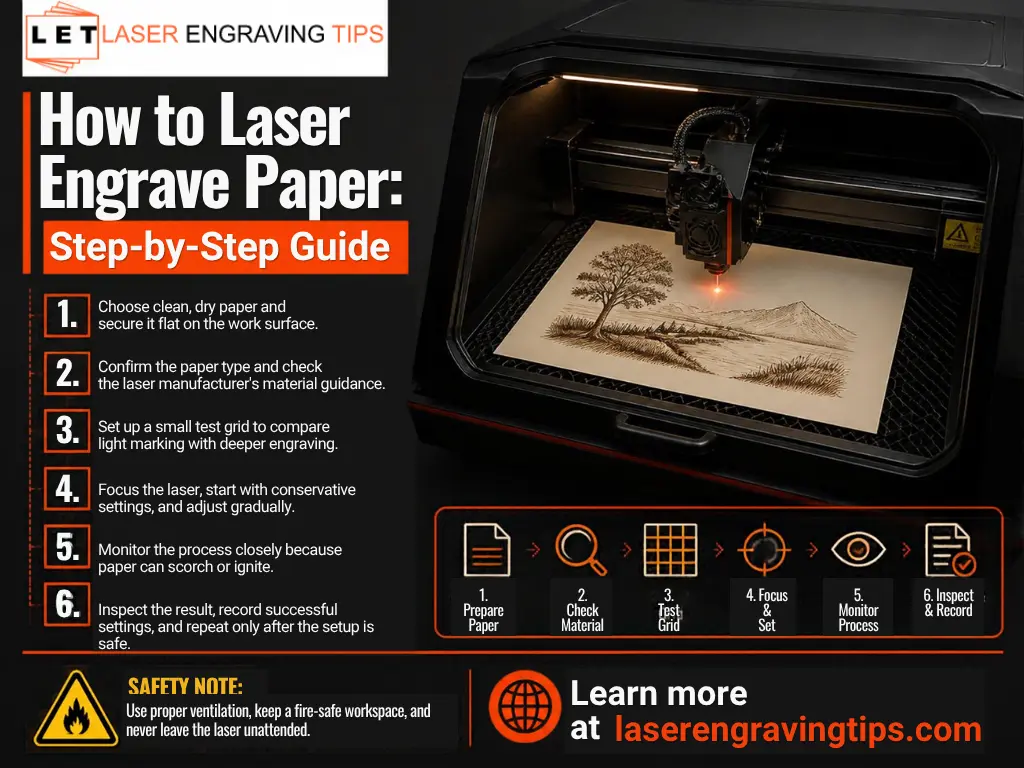
The following workflow can help you produce cleaner paper engravings while reducing the risk of burns and fire.
Step 1: Choose Suitable Paper
Select paper based on the intended result. Thin paper may work well for delicate line art, while cardstock is often more suitable for invitations, tags, and products that need to retain their shape.
Check the manufacturer’s guidance and avoid paper containing unknown coatings, metallic layers, or treatments that may be unsuitable for laser processing.
Step 2: Prepare Your Artwork
Create the design in software compatible with your laser machine.
For engraving, use high-resolution images or vector artwork where appropriate. Fine lines, readable lettering, and clear contrast generally produce better results than overly detailed images with large areas of dark shading.
If you are combining engraving and cutting, separate the operations into distinct layers or colors according to your software’s workflow.
Step 3: Secure the Paper
Paper is lightweight and can move due to airflow or machine movement. Secure it flat using a suitable fixture, a compatible honeycomb bed, or another manufacturer-approved method.
We recommend using these xTool Honeycomb Material Pins:
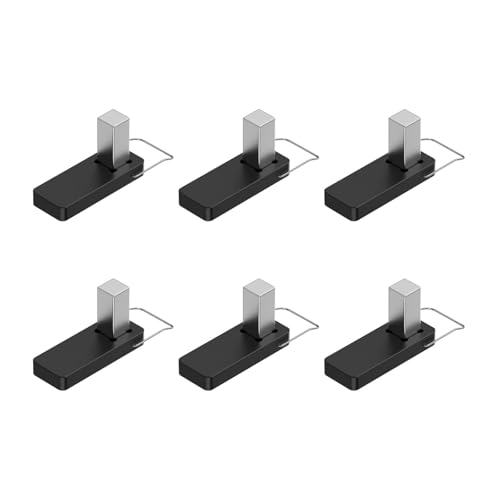
- It is made of strong plastic and magnets that press down on the wood for a clean and consistent cut on warped boards
Avoid materials that could create fumes, interfere with the laser, or introduce additional fire hazards.
Make sure the sheet is flat enough to remain within the machine’s focus range.
Step 4: Focus the Laser
Correct focus helps maintain consistent line width and engraving quality.
Follow the machine manufacturer’s focusing procedure. If the paper is uneven or textured, check that the surface remains at a suitable height throughout the design.
Step 5: Run a Small Test
Before processing the finished sheet, engrave a small test pattern on a scrap piece of the same paper.
Test different combinations of power and speed within the manufacturer’s recommended operating range. If your machine supports other relevant parameters, such as pulse frequency, use them according to the manufacturer’s guidance.
Look for:
- Clear, consistent lines
- Legible small text
- Minimal discoloration
- No unwanted holes
- Clean edges
- No smoldering or excessive charring
Paper varies widely, so a test on ordinary printer paper may not predict how thick cardstock or coated stock will behave.
Step 6: Adjust the Settings
If the engraving is too faint, make a small adjustment to the settings and test again. If the paper becomes dark, brittle, or perforated, reduce the energy delivered to the material.
Avoid making large changes all at once. Adjusting one variable at a time makes it easier to identify what improves the result.
Step 7: Engrave the Design
Once the test produces an acceptable result, process the final design.
Remain at the machine throughout the operation. Paper can ignite quickly, even when the engraving appears shallow.
Never leave a laser running unattended, and stop the process immediately if you notice flames, smoldering, or unexpected smoke buildup.
Step 8: Inspect the Finished Paper
After processing, inspect the sheet for consistent contrast, clean edges, and any unwanted burn marks.
Remove loose debris carefully. If you are producing invitations or other premium stationery, check several pieces from the batch to make sure the result remains consistent.
Laser Engraving Paper Settings: What Should You Know?
There is no universal set of laser settings for paper. A suitable combination depends on the laser type, optical output, focus, motion system, paper thickness, fiber composition, and desired result.
The goal is to deliver enough energy to create the design without causing excessive heating.
Laser Power
Power controls the amount of laser energy available for processing. Higher power can create darker marks or cut through paper more quickly, but it also increases the risk of scorching and ignition.
Thin paper often requires less energy than thick cardstock. Start with the machine manufacturer’s recommended settings and test carefully.
Scanning Speed
Scanning speed determines how quickly the laser moves across the design.
Slower movement generally increases the energy delivered to a given area. Faster movement reduces exposure time and may help prevent excessive darkening.
However, very fast processing can produce faint or incomplete marks if the power and other settings are not suitable.
Number of Passes
Multiple passes can increase the amount of material affected, but they also create additional heat.
For thin paper, one carefully controlled pass may be enough for many designs. Avoid repeated passes unless testing shows they are necessary and the process remains safe.
Resolution and Line Spacing
When engraving raster images, resolution and line spacing influence how much of the paper is processed.
High resolution can improve fine details, but it may also increase processing time and the amount of heat delivered to the sheet. Excessive overlap can darken broad areas and weaken the paper.
Choose a resolution suited to the detail required rather than automatically using the highest available setting.
Air Assist
Air assist can influence cutting quality and help manage smoke, but the appropriate airflow depends on the machine and the job.
Too much airflow may move lightweight paper, while insufficient airflow may allow smoke and residue to accumulate. Use the machine manufacturer’s recommended configuration and secure the paper properly.
A Practical Approach to Settings
Start with the manufacturer’s guidance for the exact laser model and paper type. Use a small test grid to compare results, and record the settings that work.
Do not copy settings from a different machine simply because its advertised wattage is similar. Different laser designs, focus systems, and motion setups can produce very different results.
Start with these baseline parameters and fine-tune for your specific machine:
Setting | Recommended Range |
|---|---|
Laser Type | CO₂ Laser (30–60W) |
Power | 5–20% |
Speed | 300–600 mm/s 11.81–23.62 in/s |
Frequency (Hz) | 500–1000 |
Focus | Slightly defocused for softer shading |
Common Problems When Laser Engraving Paper
Even with suitable equipment, paper engraving can be affected by several common issues.
Scorch Marks
Scorch marks occur when the paper receives too much energy or remains exposed to heat for too long.
To reduce scorching, test a faster scan speed or lower power within the manufacturer’s recommended range. Check focus and ensure that the artwork does not contain unnecessarily dense filled areas.
Burned Edges
Burned edges are especially common when cutting paper or cardstock.
Excessive power, slow movement, repeated passes, and unsuitable airflow can contribute to dark edges. Use a test pattern to find the lowest-energy process that reliably completes the cut.
Inconsistent Engraving
Uneven results may be caused by paper movement, uneven thickness, poor focus, or differences in the paper’s coating and composition.
Secure the sheet flat, check the focus, and use material from the same batch for production work.
Fine Details Disappearing
Very small lettering and thin lines may become difficult to distinguish if the laser affects too much of the surrounding paper.
Try simplifying the artwork, increasing the size of very small text, or adjusting the processing settings to reduce unwanted darkening.
Paper Catching Fire
Paper is combustible, and a laser can ignite it if too much energy is delivered to a small area.
Never leave the machine unattended. Keep appropriate fire-safety equipment nearby, maintain the required ventilation and extraction, and follow the machine manufacturer’s emergency procedures.
We recommend keeping a fire extinguisher like the First Alert Fire Extinguisher within arm’s reach of your laser engraver.

- First Alert's HOME1 FE1A10GR Fire Extinguisher is UL rated 1-A: 10-B:C; it features durable all-metal construction with a commercial-grade metal valve and trigger to meet demanding needs
Creative Applications for Laser Engraving on Paper
Laser engraving can turn ordinary paper products into customized items for personal use, events, and business applications.
1. Wedding Invitations
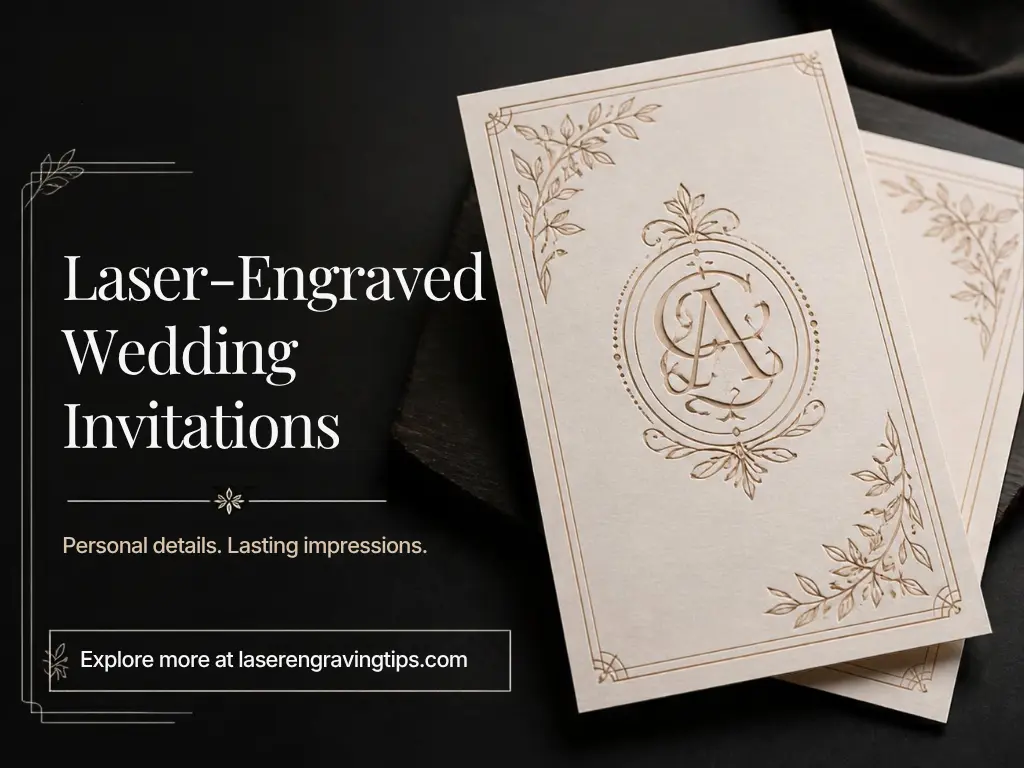
Laser engraving and cutting can create intricate borders, decorative patterns, names, initials, and personalized details for wedding invitations.
Cardstock is a popular choice because it provides more rigidity than ordinary paper. Test the exact stock before production to make sure fine details remain crisp and the edges are clean.
2. Greeting Cards
Custom greeting cards can include engraved artwork, names, messages, and decorative cutouts.
Layered designs can combine engraved text with cut shapes to create depth without requiring complicated printing or hand-cutting techniques.
3. Business Cards
Laser-processed paper business cards can provide distinctive branding through logos, patterns, and custom typography.
The paper’s thickness, finish, and durability should suit the intended use. Test the design at actual size to make sure the text remains legible.
4. Paper Art and Illustrations
Artists can use laser engraving to reproduce line drawings, illustrations, mandalas, and intricate patterns.
Paper color and texture influence the final appearance, so experimenting with different stocks can help achieve the desired artistic effect.
5. Custom Packaging
Laser processing can be used to create packaging prototypes, inserts, labels, and decorative elements.
Businesses can use it to personalize packaging for small product runs or create precise cutouts for product displays.
6. Scrapbooking and Craft Templates
Laser-engraved paper pieces can be used for scrapbooking, layered artwork, stencils, and other craft projects.
The ability to reproduce the same design repeatedly makes laser processing useful for creators who sell personalized craft products.
7. Educational Projects
Paper is an accessible material for demonstrating vector design, raster engraving, pattern generation, and laser workflow concepts.
Teachers and makers can use suitable paper projects to explore digital fabrication, provided the equipment is operated with proper supervision and fire precautions.
Is Laser Engraving Paper Safe?
Laser engraving paper can be performed safely when the equipment is used correctly, but fire prevention must be a priority.
Paper can ignite quickly, and smoke may contain particles or fumes from the paper’s additives, coatings, inks, or adhesives.
Follow these precautions:
- Never leave the laser unattended. Keep the material under continuous observation throughout the job.
- Use appropriate ventilation and extraction. Remove smoke and airborne particles from the work area using equipment suitable for the machine and material.
- Check the material before processing. Avoid unknown coatings, metallic layers, and materials that the manufacturer has not approved for laser use.
- Keep the work area clear. Remove unnecessary combustible materials from around the machine.
- Use the correct enclosure and safety systems. Follow the manufacturer’s instructions for interlocks, protective covers, and eyewear.
- Secure lightweight paper. Prevent the sheet from shifting into an unsafe position or contacting parts of the machine where it could catch fire.
- Follow emergency procedures. Know how to stop the laser immediately and respond to a fire according to the equipment manufacturer’s guidance and your workplace safety procedures.
Do not assume that low power eliminates the risk. Even a brief exposure can ignite paper under the wrong conditions.
How to Choose the Best Laser Engraver for Paper
The best machine depends on the type of work you plan to produce, the size of your projects, and how frequently you will use it.
Consider the Laser Type
For small craft projects and occasional personalized stationery, a compatible diode laser may be sufficient.
For frequent paper cutting, detailed invitations, and larger production runs, a suitable CO2 laser may offer a more practical combination of working area, processing speed, and versatility.
Check the Working Area
Make sure the working area accommodates the largest sheet you plan to process.
A larger bed can reduce the need to reposition material and may improve productivity when making multiple pieces in one job.
Look at Motion Accuracy
Fine lettering and intricate patterns require reliable positioning and consistent movement.
Review the machine’s specifications, software capabilities, and sample results. If possible, test the smallest details you expect to produce.
Evaluate Airflow and Extraction
Paper processing generates smoke and debris, especially during cutting.
Choose a setup that supports appropriate extraction and airflow while keeping the paper securely in place. Confirm that any extraction equipment is suitable for the materials you intend to process.
Consider Software Compatibility
Your laser software should support the artwork formats and workflow you use. Features such as separate engraving and cutting layers, image processing, and reliable positioning can make production easier.
Test Before Committing to Production
If you’re buying a laser specifically for paper products, test the exact stock and designs you intend to use.
Evaluate line quality, cutting edges, processing time, repeatability, and safety. A successful sample is a better indicator of suitability than rated power alone.
Final Thoughts
Laser engraving on paper is a versatile way to create personalized stationery, detailed artwork, decorative cutouts, custom packaging, and a wide range of paper crafts.
With the right laser and a carefully controlled process, you can achieve crisp lines, attractive contrast, and repeatable results.
A diode laser is often a good starting point for hobbyists and small craft businesses, while a CO2 laser is a strong option for frequent cutting, detailed designs, and higher-volume work.
The most important factors are choosing suitable paper, preparing your artwork, testing the settings, and managing the risk of fire.
Because paper thickness, coatings, and fiber composition vary, always test the exact material before production and follow the manufacturer’s safety guidance.
With a suitable setup and careful testing, laser engraving can turn simple sheets of paper into distinctive, professional-looking products.
Frequently Asked Questions
Can you laser engrave on paper without burning it?
Yes — if you use the right settings. The key is low laser power and high engraving speed. For most CO₂ lasers (30W–60W), start at 5–15% power and 300–600 mm/s speed. Always test first on scrap paper. Using thicker paper (like 180–230 GSM cardstock) also helps prevent burn-through and warping.
Can you combine laser engraving and cutting on the same paper project?
Absolutely. Many creators combine engraving for detail and cutting for shape in a single design. For example, you can engrave a logo or pattern, then cut around it to make custom cards, packaging, or decorative art.
Just remember: use separate power settings — low for engraving, high for cutting — and always engrave first, then cut.
Is laser cutting paper safe?
It can be, as long as you monitor the process closely. Paper is flammable, so never leave your laser unattended and keep your machine clean to avoid fire risks.
Can you laser engrave paper with a diode laser?
Yes. Many diode lasers can engrave and cut suitable paper and cardstock. The best results depend on the machine, focus, paper composition, and processing settings. Careful testing and constant supervision are essential.
What is the best laser for paper engraving?
A diode laser is often a practical option for small craft projects, while a CO2 laser is well suited to many paper engraving and cutting applications, including detailed invitations and production work. The best choice depends on the required detail, sheet size, and production volume.
Can you laser engrave cardstock?
Yes. Cardstock is commonly used for laser-processed invitations, greeting cards, tags, and decorative paper products. Since thickness and coatings vary, test the exact cardstock before selecting settings.
Can you laser engrave ordinary printer paper?
Yes, but thin printer paper can scorch or ignite easily. Use suitable low-energy settings recommended for your machine, secure the sheet flat, and remain at the laser throughout processing.
Can you laser cut paper as well as engrave it?
Yes. Many compatible laser machines can engrave and cut paper in the same project. Engraving settings and cutting settings are different, so test each operation separately.
Why does paper turn brown during laser engraving?
Paper often turns brown because the laser heats and alters the cellulose fibers. The degree of discoloration depends on the paper’s composition and the energy delivered. Excessive energy can produce dark charring or holes.
Do you need air assist for paper engraving?
Not every job requires the same airflow configuration. Air assist can affect smoke removal and cutting quality, but excessive airflow may move lightweight paper. Follow your laser manufacturer’s recommendations and secure the sheet properly.
Is laser engraving paper profitable?
It can be, particularly for personalized invitations, custom stationery, decorative packaging, and small-batch craft products. Profitability depends on material costs, setup time, machine speed, labor, and customer demand.
How do you prevent paper from catching fire during laser engraving?
Use suitable settings, secure the paper, maintain appropriate extraction, keep the work area clear, and monitor the process continuously. Never leave a laser operating unattended, even for a short job.