
The desktop laser market has become increasingly competitive over the past few years, with manufacturers constantly introducing new features aimed at hobbyists, crafters, and small business owners.
While many machines focus on higher power outputs or larger work areas, the xTool M2 takes a different approach.
Instead of simply being another laser engraver, it aims to be a complete creative workstation that combines laser cutting, laser engraving, color printing, and intelligent automation in one compact machine.
Table of Contents
With a starting price that makes it accessible to a wider audience, the xTool M2 is generating a lot of attention among makers looking for their first laser engraver.
The question is simple: does it deserve a place among the best budget desktop craft lasers available today?
What Is the xTool M2?
The xTool M2 is an enclosed desktop laser engraver and cutter designed for home users, crafters, educators, and small businesses.
Available with either a 10W or 20W diode laser module, the machine supports a wide variety of materials, including wood, leather, felt, paper, cardstock, cardboard, cork, and acrylic.
Unlike many competing laser engravers, the M2 incorporates a dual-camera positioning system, autofocus capabilities, integrated air assist, and support for additional modules such as a CMYK color printing head and a 3W infrared laser for metal marking.
This unique combination allows users to:
- Print full-color designs
- Laser cut shapes
- Laser engrave details
- Create print-and-cut projects
- Mark metal with an optional IR laser module
Rather than focusing solely on engraving and cutting, xTool has built the M2 around the idea of simplifying the entire creative process.
Designed for Beginners
One of the biggest challenges for new laser users is learning how to properly position materials, select settings, and align designs. Traditional laser engravers often require trial and error before achieving consistent results.
The xTool M2 addresses these challenges through its built-in dual-camera system. Users can view a live preview of the workspace directly inside xTool Studio, making it easy to position designs exactly where they want them.
The machine’s ACS (Automated Creation System) further streamlines the process by automatically handling tasks such as material positioning, focusing, and setup.
This significantly reduces the learning curve and helps beginners avoid common mistakes that waste both time and materials.
Benefits include:
- Faster workflow
- Improved accuracy
- Less material waste
- Easier project setup
- Perfect alignment between printing and cutting
For users transitioning from craft cutters like Cricut or Silhouette machines, the workflow feels familiar and approachable.
More Than Just a Laser Engraver
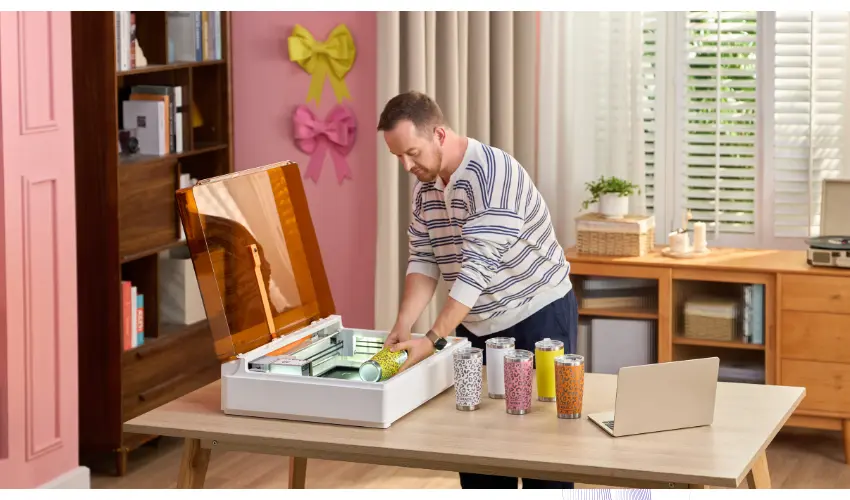
What makes the xTool M2 particularly interesting is its modular design.
The standard configuration functions as a laser engraver and cutter, but users can expand the machine’s capabilities through optional modules.
The CMYK print head allows full-color printing directly onto compatible materials, while the infrared laser module adds metal engraving functionality.
This flexibility transforms the M2 from a single-purpose machine into a multi-function crafting platform.
The print-and-cut workflow is especially appealing for creators producing stickers, labels, personalized gifts, ornaments, and small-batch merchandise.
Instead of printing on one machine and cutting on another, the M2 can handle both processes within the same workspace.
For many users, this eliminates one of the most frustrating parts of crafting: manual alignment between multiple devices.
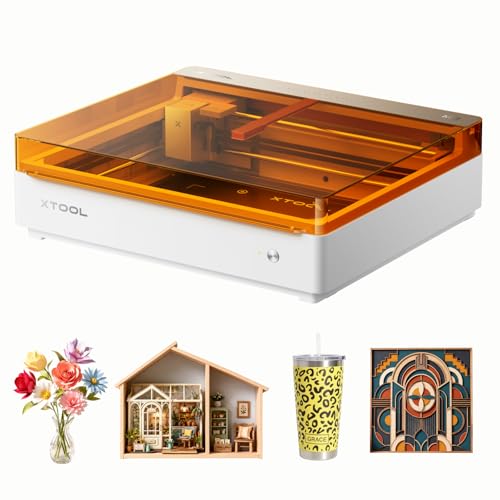
- NOTE: CMYK Inkjet module and RA3 Lite Rotary are not included in this M2 standalone, available separately as add-ons.
Available modules include:
10W Diode Laser
Perfect for:
- Detailed engraving
- Wood projects
- Leather engraving
- Craft applications
20W Diode Laser
Provides:
- Faster cutting
- Higher productivity
- Improved material processing
3W Infrared Laser
Designed for:
- Metal engraving
- Jewelry marking
- Stainless steel customization
CMYK Print Module
Adds:
- Full-color printing
- Print-and-cut workflows
- Enhanced personalization options
Users can upgrade capabilities as their needs grow.
Safety Features Matter

Safety is often overlooked when shopping for a budget laser engraver, but it becomes incredibly important when the machine is used in a home environment.
The xTool M2 features a fully enclosed Class 1 design, which helps protect users from accidental laser exposure.
The enclosure also improves smoke management and creates a more professional appearance compared to open-frame laser engravers.
The machine includes real-time monitoring systems and safety features designed specifically for home use. This makes it a more attractive option for families, classrooms, and makers who may not have dedicated workshop spaces.
For beginners concerned about operating a laser engraver safely, the enclosed design provides valuable peace of mind.
xTool M2 Specifications
Feature | Specification |
|---|---|
Working Area | 16.7″ × 12.5″ |
Maximum Speed | 600 mm/s |
Laser Options | 10W or 20W Diode |
Additional Module | 3W Infrared Laser |
Print Module | CMYK Inkjet |
Camera System | Dual Cameras |
Focus Method | Autofocus |
Connectivity | Wi-Fi and USB |
Software | xTool Studio |
Safety Rating | Class 1 Enclosed |
Rotary Support | Yes |
Operating Systems | Windows & macOS |
Materials You Can Process
The xTool M2 supports a wide range of materials.
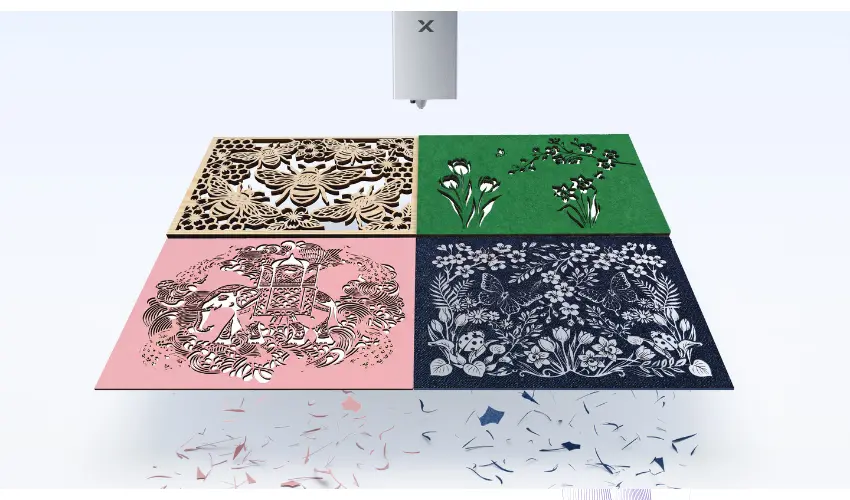
Materials You Can Cut
- Basswood
- MDF
- Cardboard
- Paper
- Cardstock
- Leather
- Felt
- Opaque acrylic
- Foam board
Materials You Can Engrave
- Wood
- Leather
- Dark Acrylic
- Cork
- Rubber
- Coated Glass
- Ceramic
- Stainless steel
- Aluminum
- Coated metals
Materials You Can Print
- Paper
- Sticker paper
- Cardstock
- Wood
- Canvas
- Felt
- Leather
- Fabric
This versatility makes the M2 suitable for countless projects.
What Can You Make with the xTool M2?
Project Category | Popular Project Ideas |
|---|---|
Personalized Gifts | Keychains, photo plaques, name signs, leather wallets, tumblers |
Small Business Products | Product tags, packaging inserts, labels, branded merchandise, promotional products |
Home Decor | Wooden signs, wall art, seasonal decorations, coasters, decorative trays |
Print-and-Cut Products | Stickers, labels, cake toppers, party decorations, greeting cards |
Educational Projects | STEM kits, classroom materials, custom learning tools |
Best For | Makers, hobbyists, educators, Etsy sellers, crafters, and small business owners looking to create personalized, decorative, or commercial products with a single machine |
Why the Print-and-Cut Feature Matters
Many crafters rely on multiple machines to complete a single project.
A typical workflow often involves creating a design, printing it on a separate printer, loading the printed material into a cutting machine, aligning registration marks, and then cutting the finished design.
While effective, this process can be time-consuming and increases the risk of alignment errors and material waste.
The xTool M2 simplifies this workflow by combining printing, cutting, and engraving capabilities into a single machine.
Instead of moving materials between different devices, users can complete projects from start to finish in one workspace.
This integrated approach improves accuracy, reduces setup time, minimizes material waste, and helps increase overall production efficiency.
For sticker makers, crafters, and small business owners, the time savings alone can make a significant difference, allowing them to produce more products with less effort each week.
Real-World Performance
In practical use, the xTool M2 delivers impressive results across a wide range of projects.
Wood engraving produces sharp details and excellent contrast. Leather engraves cleanly and is ideal for creating custom patches, keychains, wallets, and personalized gifts.
Paper and cardstock projects benefit from the machine’s precise cutting capabilities, making it suitable for intricate craft designs and decorative projects.
The 10W model offers enough power for most hobbyist applications, while the 20W version significantly improves cutting speeds and productivity.
The autofocus system and camera-assisted positioning help maintain consistency, which is especially important for users creating products for sale.
The addition of integrated air assist further improves cut quality by reducing scorching and improving edge cleanliness.
xTool M2 vs xTool M1 Ultra
Both the xTool M2 and xTool M1 Ultra are designed for makers, crafters, and small businesses, but they target slightly different users.
The M2 focuses on laser engraving, cutting, and color printing with advanced automation, while the M1 Ultra offers a wider range of crafting tools, including blade cutting and pen drawing capabilities.
Feature Comparison
Feature | xTool M2 | xTool M1 Ultra |
|---|---|---|
Starting Price | From $599 | From $999 |
Laser Modules | 10W or 20W Blue Diode Laser, 3W IR Laser | 10W or 20W Blue Diode Laser |
Blade Cutting | No | Fine-Point Blade, Cutting Blade, Rotary Blade |
Inkjet Printing | CMYK Ink System | CMY Ink System |
Pen Drawing | No | Supports 8 Pen Colors |
Camera System | Dual-Camera Real-Time Positioning | Pin-Point Positioning |
Autofocus | Yes | No |
Print-and-Cut Workflow | Integrated | Available |
Metal Engraving | Yes (with 3W IR Module) | Limited |
Rotary Engraving | Supported | Supported |
Which Machine Produces Better Prints?
The xTool M2 features an upgraded CMYK print head, including a dedicated black ink channel. This produces:
- Richer blacks
- Better color accuracy
- Sharper text
- Improved photo quality
The M1 Ultra uses a CMY system, which creates black by combining cyan, magenta, and yellow inks.
While still capable of producing colorful designs, print quality is generally not as vibrant or accurate as the M2’s dedicated CMYK system.
xTool M2 vs Blade Cutters (Cricut, Silhouette, and Similar Machines)
Feature | xTool M2 | Traditional Blade Cutters (Cricut, Silhouette, etc.) |
|---|---|---|
Print-and-Cut Workflow | Prints, cuts, and engraves in a single machine. No need to move materials between devices. Automatic alignment and positioning streamline the process and reduce setup time. | Requires a separate printer for printed designs. Materials must be manually transferred and reloaded. Relies on registration marks and sensor scanning, increasing setup time and the risk of alignment errors. |
Vision & Positioning | Dual-camera system provides a live workspace preview, drag-and-drop design placement, and real-time material positioning for accurate results. | Uses sensor-based positioning without a live camera view. Limited visual feedback can make precise placement more challenging. |
Material Compatibility | Can cut and engrave a wide range of materials, including wood, acrylic, leather, felt, cardboard, paper, MDF, and cork. | Primarily designed for vinyl, paper, cardstock, and thin fabrics. Often struggles with thicker, denser, or harder materials. |
Cutting Technology | Uses laser technology for precise cutting, engraving, and detailed designs on both soft and hard materials. | Uses a blade to cut materials, making it best suited for thinner materials and simpler applications. |
Workflow Efficiency | All-in-one workflow minimizes material handling, reduces waste, and speeds up production. | Multi-step workflow requires additional equipment and manual intervention. |
Creative Applications | Ideal for personalized products, signs, jewelry, layered artwork, engraving projects, home décor, and small-business production. | Best suited for stickers, vinyl decals, paper crafts, greeting cards, and basic DIY projects. |
Production Accuracy | Camera-assisted positioning and automated alignment help ensure consistent, repeatable results. | Accuracy depends heavily on registration marks, sensor calibration, and proper material loading. |
Best For | Makers, crafters, and small businesses looking for laser cutting, engraving, and print-and-cut capabilities in one machine. | Hobbyists focused on paper crafts, vinyl projects, decals, and lightweight materials. |
Where the xTool M2 Falls Short

No machine is perfect, and the xTool M2 has a few limitations that buyers should consider.
The most obvious drawback is that some of the most exciting features require additional purchases.
While the base machine is reasonably priced, adding the CMYK print head, infrared laser module, rotary attachment, or air purification system can significantly increase the total investment.
Some advanced laser users may also be disappointed by the lack of LightBurn support.
While xTool Studio is highly capable and beginner-friendly, experienced users who prefer complete control over laser settings may miss the flexibility offered by third-party software.
The 10W version is also slower than higher-powered laser engravers when cutting thicker materials. Users planning to produce large quantities of products may find the 20W model a better long-term investment.
Is the xTool M2 The Best Budget Desktop Craft Laser?
The xTool M2 makes a very strong case for itself, but calling it the single “best budget desktop craft laser” depends on what you actually need from a machine.
On value alone, it’s hard to ignore. At its price point, you get an enclosed Class 1 laser, dual-camera positioning, beginner-friendly software, and a workflow that feels much closer to a small production system than a hobby tool.
Most machines in this range either focus only on laser cutting or only on crafting workflows. The M2 blends engraving, cutting, and even optional CMYK printing into one setup, which is rare at this level.
Where it really shines is ease of use. The camera system and xTool Studio reduce a lot of the usual friction. You’re not constantly guessing placement or fighting alignment the way you do with more manual setups.
For beginners or small business users making stickers, tags, signs, or gifts, that saves a lot of time and wasted material.
But it’s not perfect, and that matters when you’re calling something “the best.” It doesn’t support LightBurn, which some users will see as a dealbreaker.
The material holding system is basic, especially for thin materials. And while the modular system is powerful, it can also mean the best experience requires buying extra add-ons rather than sticking with the base unit.
So, is it the best budget desktop craft laser? For most beginners, home crafters, and small sellers who want an all-in-one, guided experience, it’s one of the best options available.
For users who want full software freedom, heavier industrial capability, or more traditional laser workflows, there are better fits elsewhere.
In short, it’s not universally the best, but it is one of the most complete and approachable budget craft laser systems you can buy right now.
- NOTE: CMYK Inkjet module and RA3 Lite Rotary are not included in this M2 standalone, available separately as add-ons.
Frequently Asked Questions
Is the xTool M2 beginner-friendly?
Yes. Features like auto-focus, camera positioning, and automated setup make it one of the easiest laser machines to learn.
Can the xTool M2 print in color?
Yes. The optional CMYK print module enables full-color printing on compatible materials.
Can the xTool M2 engrave metal?
Yes. Metal engraving is supported with the optional 3W infrared laser module.
Does the xTool M2 support rotary engraving?
Yes. The machine is compatible with rotary accessories for engraving tumblers, mugs, bottles, and other cylindrical objects.
Is the xTool M2 safe for home use?
Yes. The enclosed Class 1 design and integrated safety features make it suitable for home workshops and craft rooms.